Deutsch
 Español
 Français
 Japanese
 Português
 Русский
 ภาษาไทย
 简体中文
 한국어
 繁體中文
How to use - Simulator
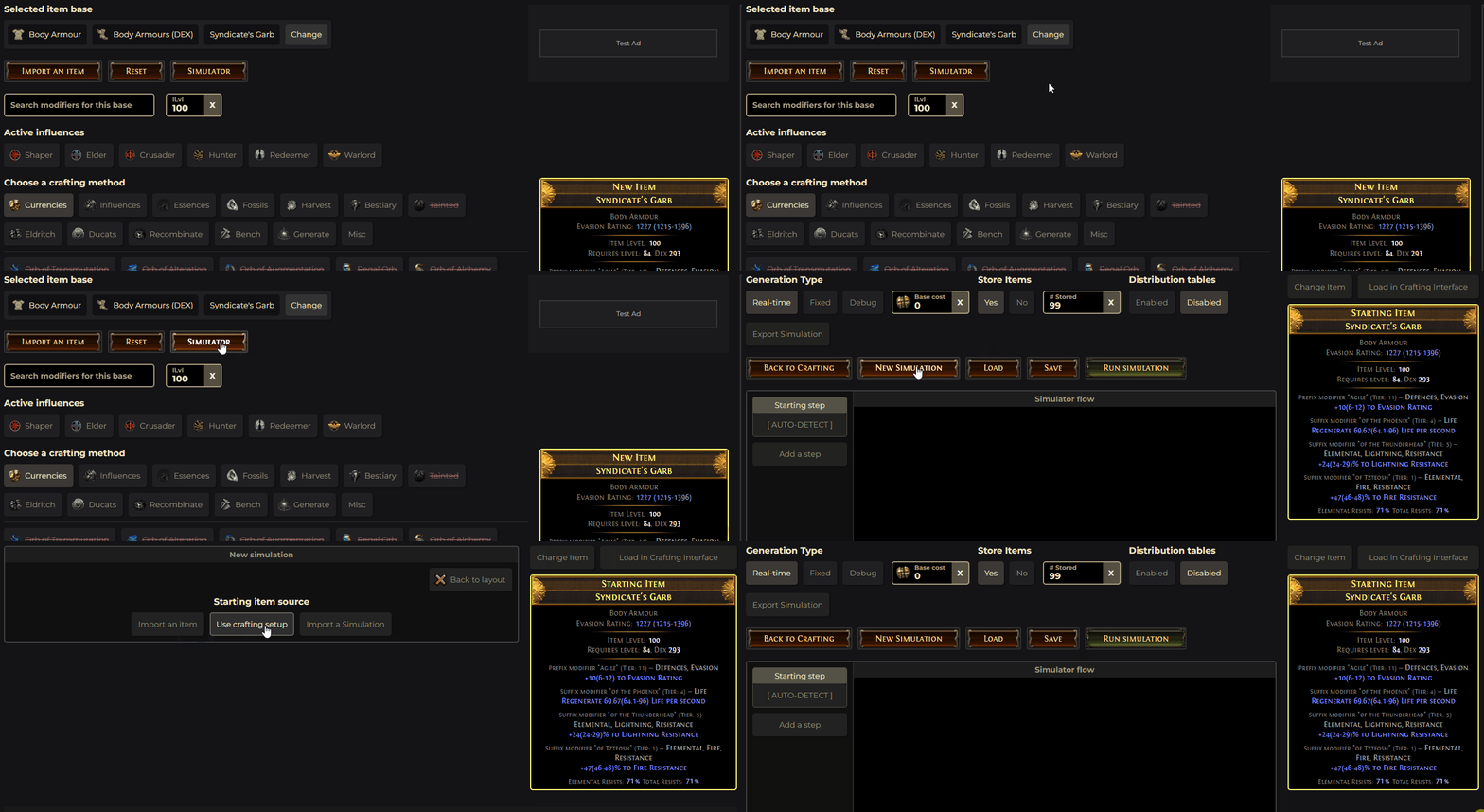
Creating a simulation
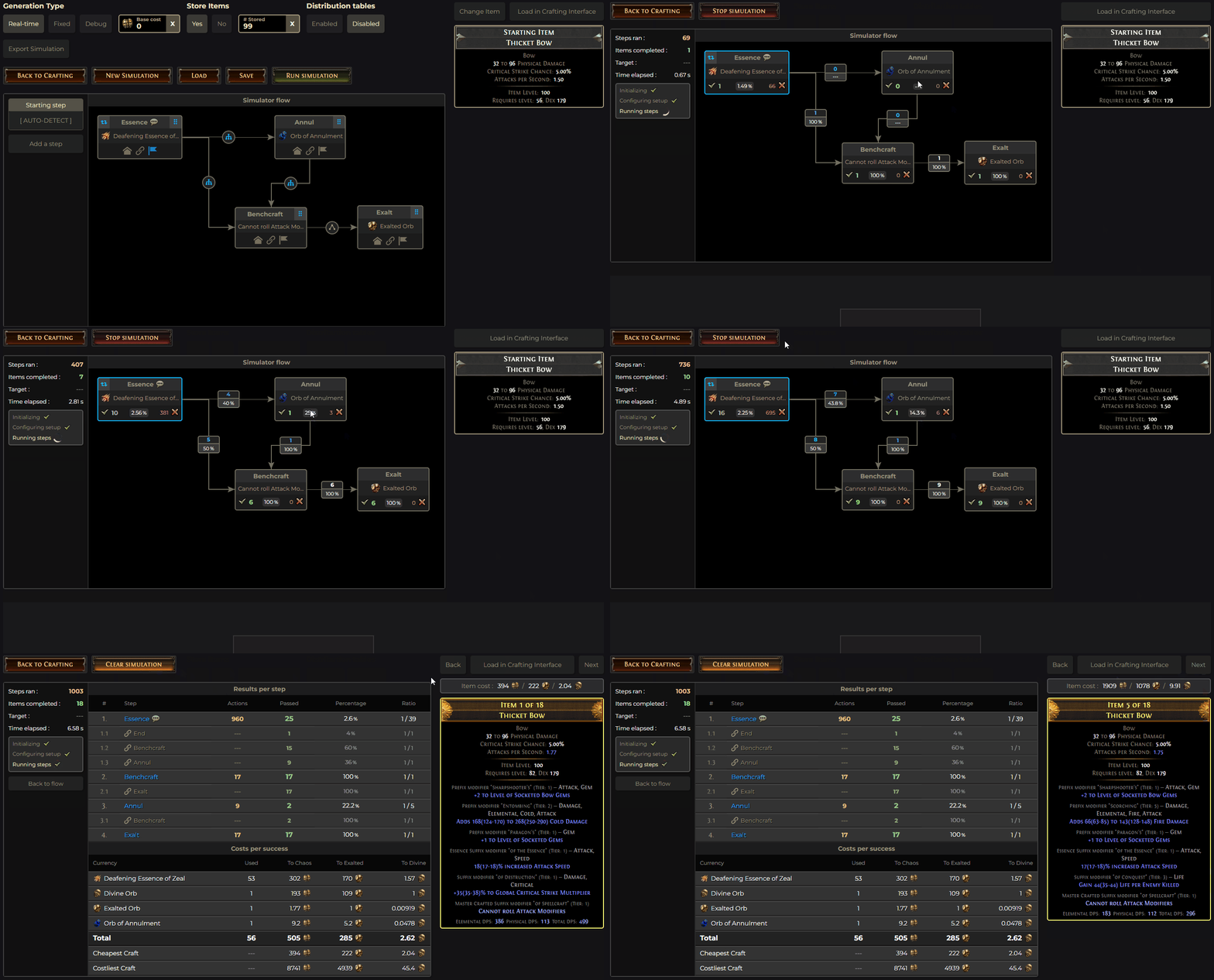
To create a simulation use the New simulation button. You will then be able to either Import an item using the games paste information, Use crafting setup which imports the current item in the crafting interface or Import a simulation where you can paste a previously exported simulation.
A simulation has multiple parameters which can be set in the header :
- :
- : Runs the simulator in real-time where each action updates the simulator flow status as its ran.
- : Allows the user to set a fixed limit number of either actions or succesful item generated.
- : Allows the user to continue operation between steps manually to better diagnose issues during simulation.
- : Allows the user to set up a base item cost to be factored into the pricing breakdowns.
- : Let's the tool know how many successful items should be stored for review after the simulation is done.
- : Will output additional breakdown tables relative to affix generation distributions.
You can also Save a simulation to local memory or Load a simulation from it.
Finally you can also create a simulation from a calculator state using the Create simulation button when it is available.
Creating steps
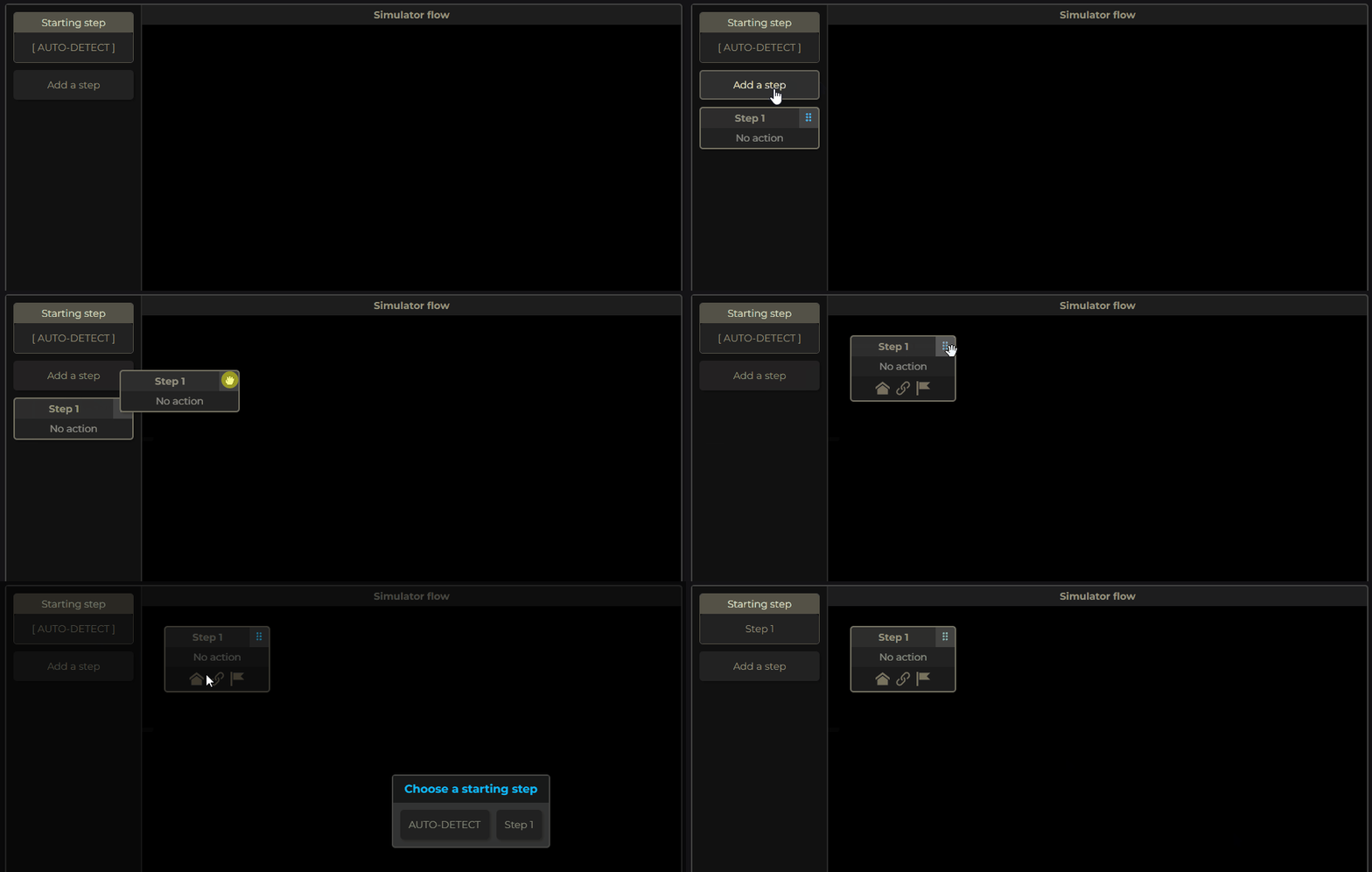
To create a step you can click on the Add a step button in the left pane. You can then drag it over to the simulator flow area by using the drag handler.
The tool will automatically try to detect which step is the starting step by assuming that it is the step without any incoming routes. If it find multiples steps or none having this requirement it will fail when you try to run a simulation. You can manually specify which step is the starting step by using Starting step box.
Editing a step
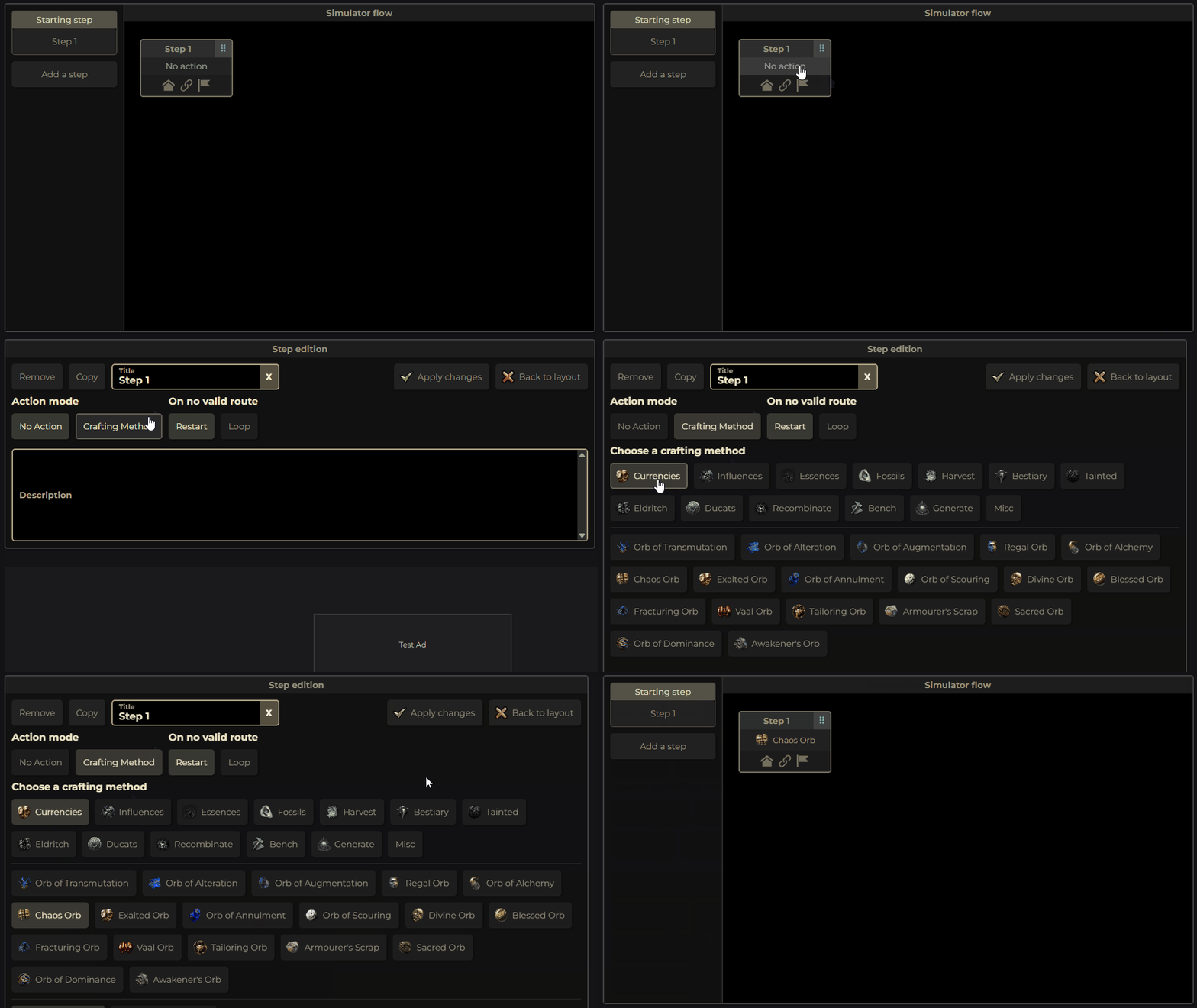
You can edit a step by clicking either on its title bar or the crafting method output area. This toggles the step editing window where you can configure a step's parameters :
- : Either No action or Crafting Method.
- : This indicates which action to take when no succesful route is found. It can be set to either Restart to go back to the simulation's start point, Loop where is will attempt the same action again or End to consider the simulation a success.
- : This is where you can select what crafting method should be used when running the step.
- : This is where you can order a step's route order priority to let the tool what should be evaluated first.
Additionally you can remove or copy a step as well as change its title or description. Once changes have been made you need to Apply changes for them to be saved.
Linking steps
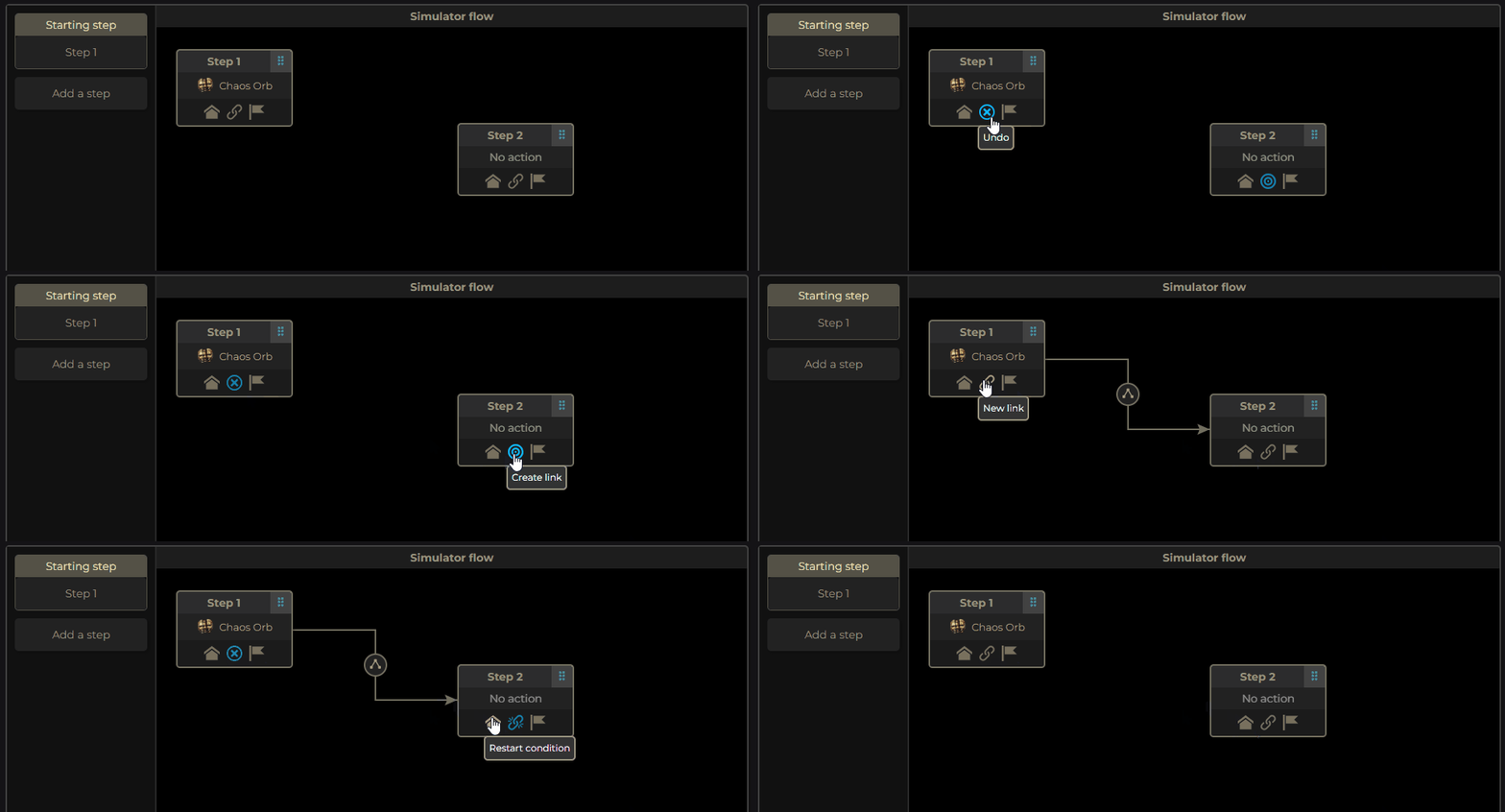
To link one step to another you need to click on the linking icon in the center of the bottom bar of a step. You'll then be able to click the corresponding target icon on the desired step. This will create a route between both steps.
Links can be removed in the same fashion by clicking on the linking icon and then the destroy link icon on the desired step.
In addition to user defined routes between steps, a step can also have route conditions set up to go back to the start of the simulation or to the end (indicating a craft success) by using the House and Flag icons respectively found in the bottom bar of a step in the simulator flow area.
Editing conditions
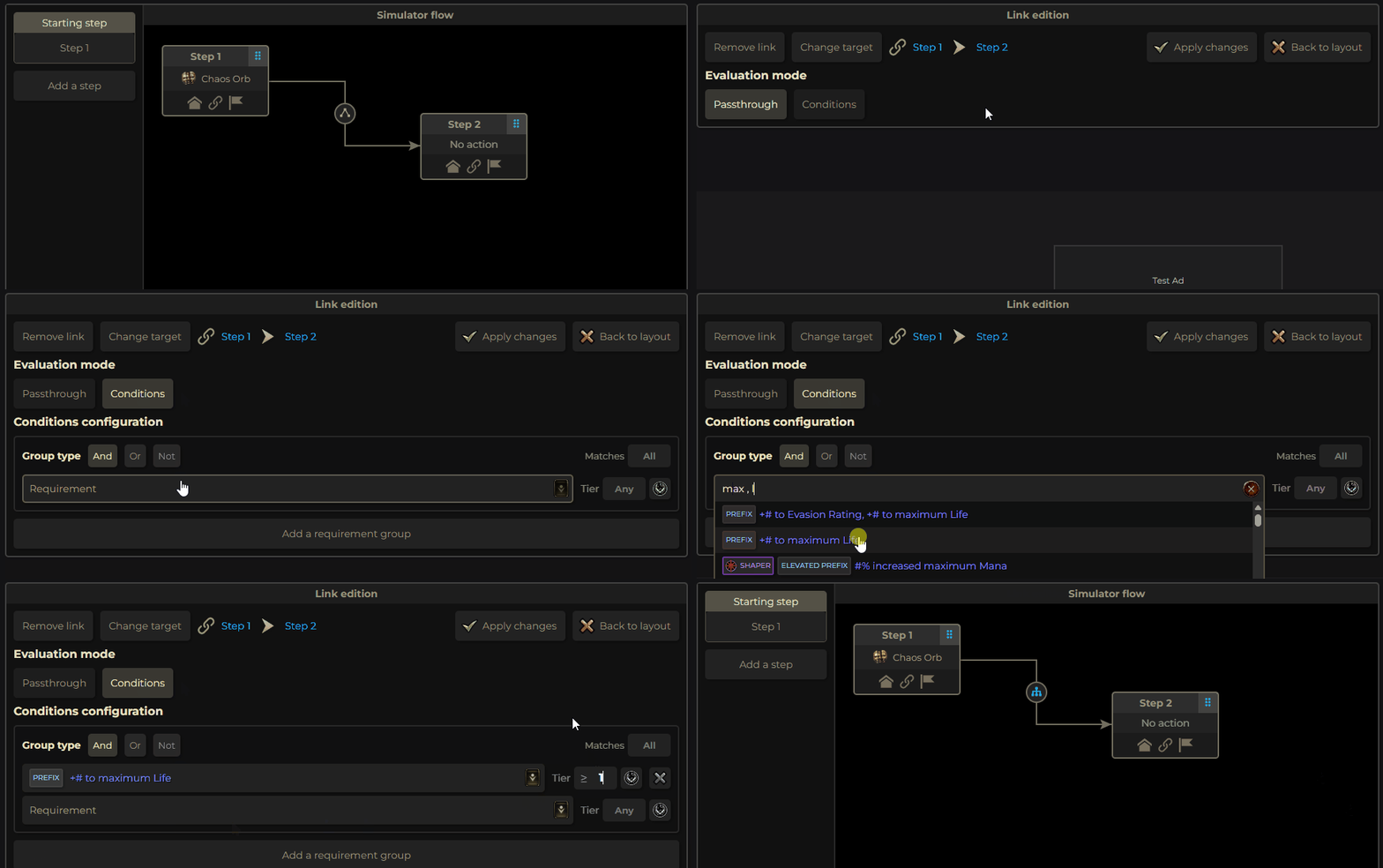
To edit a route's conditions you must click on the condition icon which is located in the center of the route's path. This toggles the link editing window where you can configure a route's parameters :
- : Either Passthrough where nothing should be checked and the route can always be taken or Conditions where it will be evaluated for success against the requirement setup.
- : This indicates which action to take when no succesful route is found. It can be set to either Restart to go back to the simulation's start point or Loop where is will attempt the same action again.
Additionally you can remove the link or change its target from this interface. Once changes have been made you need to Apply changes for them to be saved.
Running a simulation
To start the simulation click on the Run simulation button. While the simulation is running the left pane will be updated with the current simulation state including run count, steps ran, items completed and more.
The simulator flow area will also be updated with each step's and route's current state with success or failure counts and the number of times each step or route has been run or passed through.
A step action is considered a success if any of its outgoing route is used including the restart and end routes.
After the simulation has completed the tool will present the user with a linear breakdown of all step statistics as well as crafting costs averages.