Deutsch
 Español
 Français
 Japanese
 Português
 Русский
 ภาษาไทย
 简体中文
 한국어
 繁體中文
How to use - General
Broad concepts
In this new site version the calculator and emulator interface are now merged into one.
You can switch between applying a currency or sequence of currencies on an item and setting up requirements to see the odds of achieving a certain result given a desired selected currency seamlessly.
You can also go back and forth between the calculator/emulator and the simulator by using the Simulate this outcome from the calculator interface. This operation will run the selected currency against the requirement setup until a success occurs and return back to the crafting interface with the new resulting item state.
Items can also be saved to inventory future usage.
Selecting a crafting base
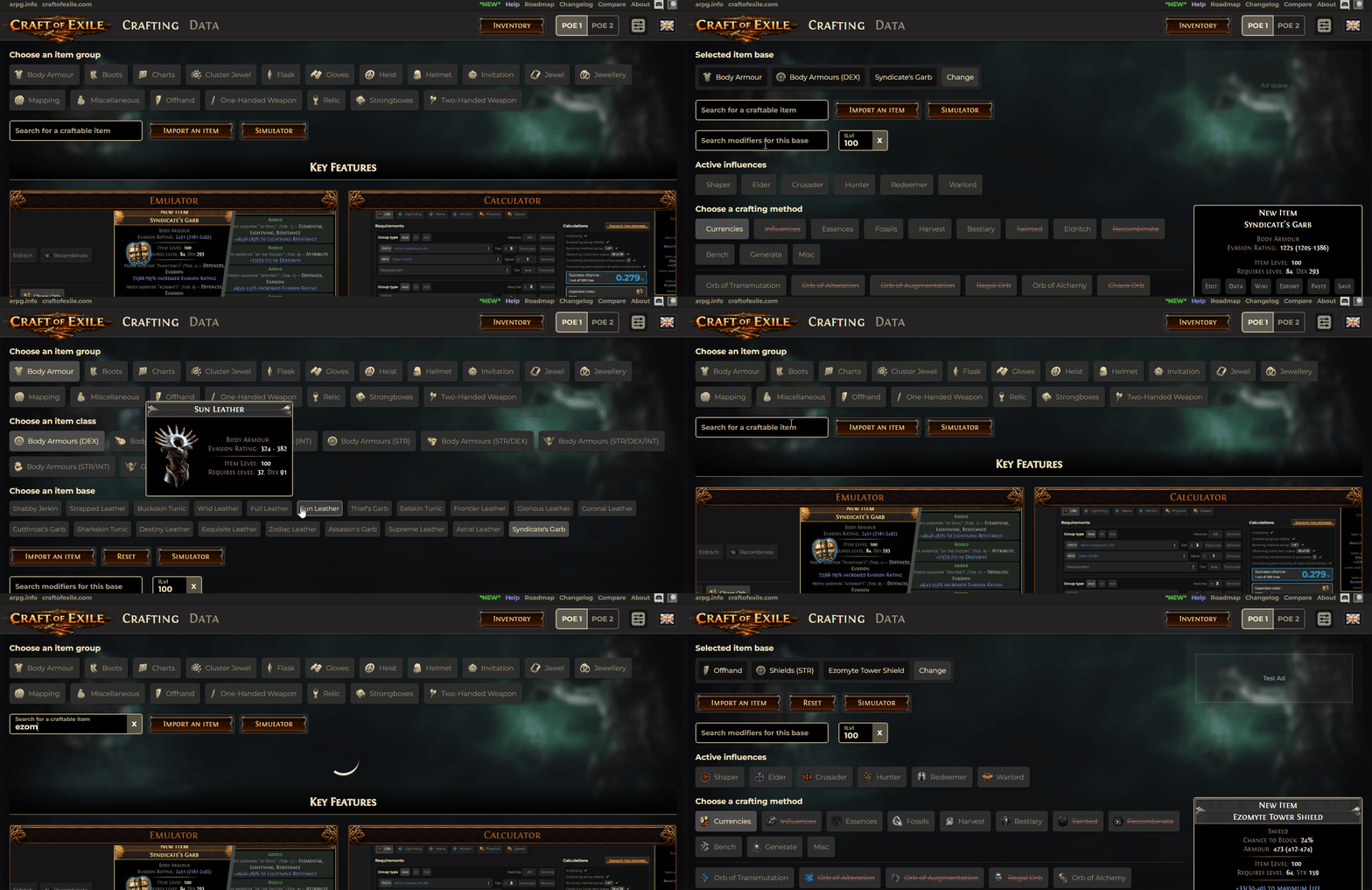
- Select an item group from the item group list.
- Select an item class from the resulting item class list.
- Select an item base from available item bases by clicking on the Selected item base breakdown zone and selecting a specific item base.
You can alternatively use the Search for a craftable item input zone to quickly find a specific item base.
You can then manually change the item's level via the ILvl input and select item influences to enable or disable them.
Importing an item
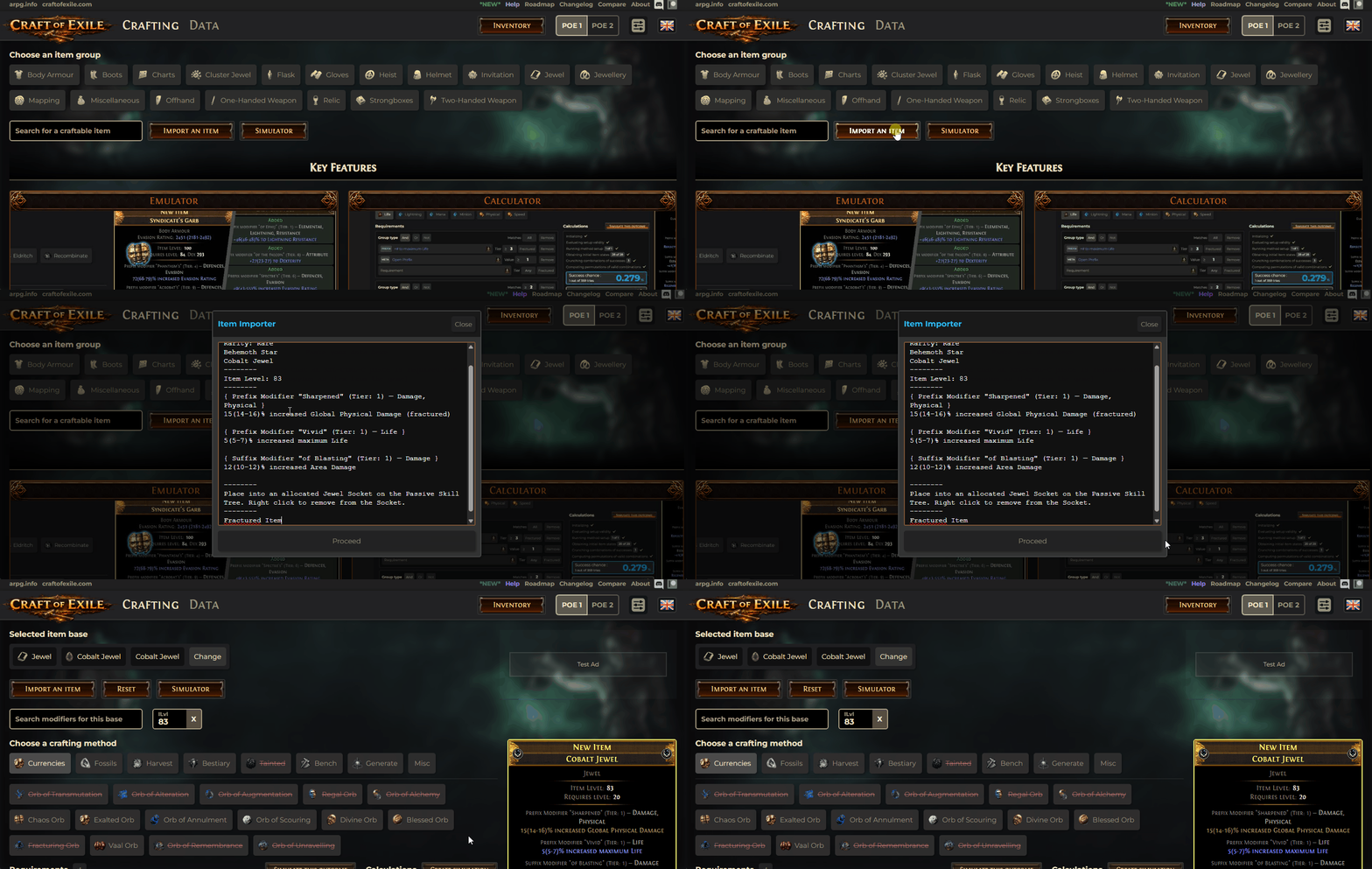
- Click on the Import an item button next to the search input.
- Paste you item text into the available text area.
- Click on the Proceed button.
If the import tool fails to find all modifiers it will let the user know and you can choose to proceed with a partial importation.
The tool will also accept a pastebin link or a gist link.
Editing an item's settings
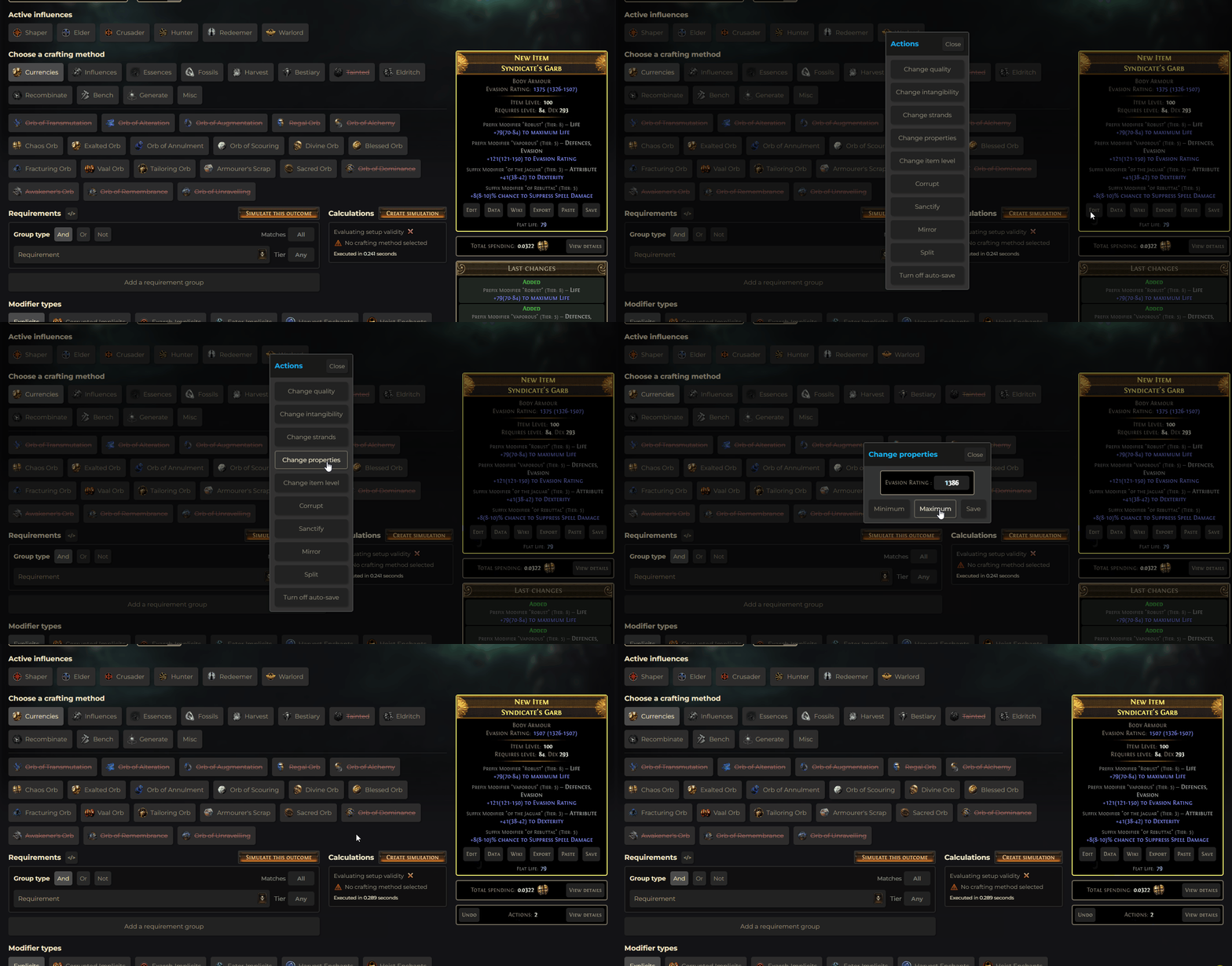
To edit an item click on the edit button at the bottom left of the item output. This will in turn open a modal with all available options which include :
- Change an item's Rarity from normal to magic to rare.
- Change the item's property values.
- Change the item's level. (This can also be changed via the
- Change an item's quality.
- Corrupt or uncorrupt an item.
- Mirror or unmirror an item.
- : You can turn on or off auto-save to automatically save changes to an inventory item.
- Split or unsplit an item.
- Sanctify or unsanctify an item.
- Change an item's strands.
- Change an item's intangibility.
- Change an item's sockets.
Editing modifiers on the current item
To add a modifier to an item left-click on a modifier group to expand its tier and left-click on the desired tier to apply it to the current item. In a case where the modifier group has only one tier clicking on it will work like selecting a tier.
To change the tier of a modifier simply click on another tier from the list and it will be replaced.
To remove a modifier click on the current tier.
You can also remove a modifier from an item by right-clicking on it in the item output zone and selecting remove modifier.
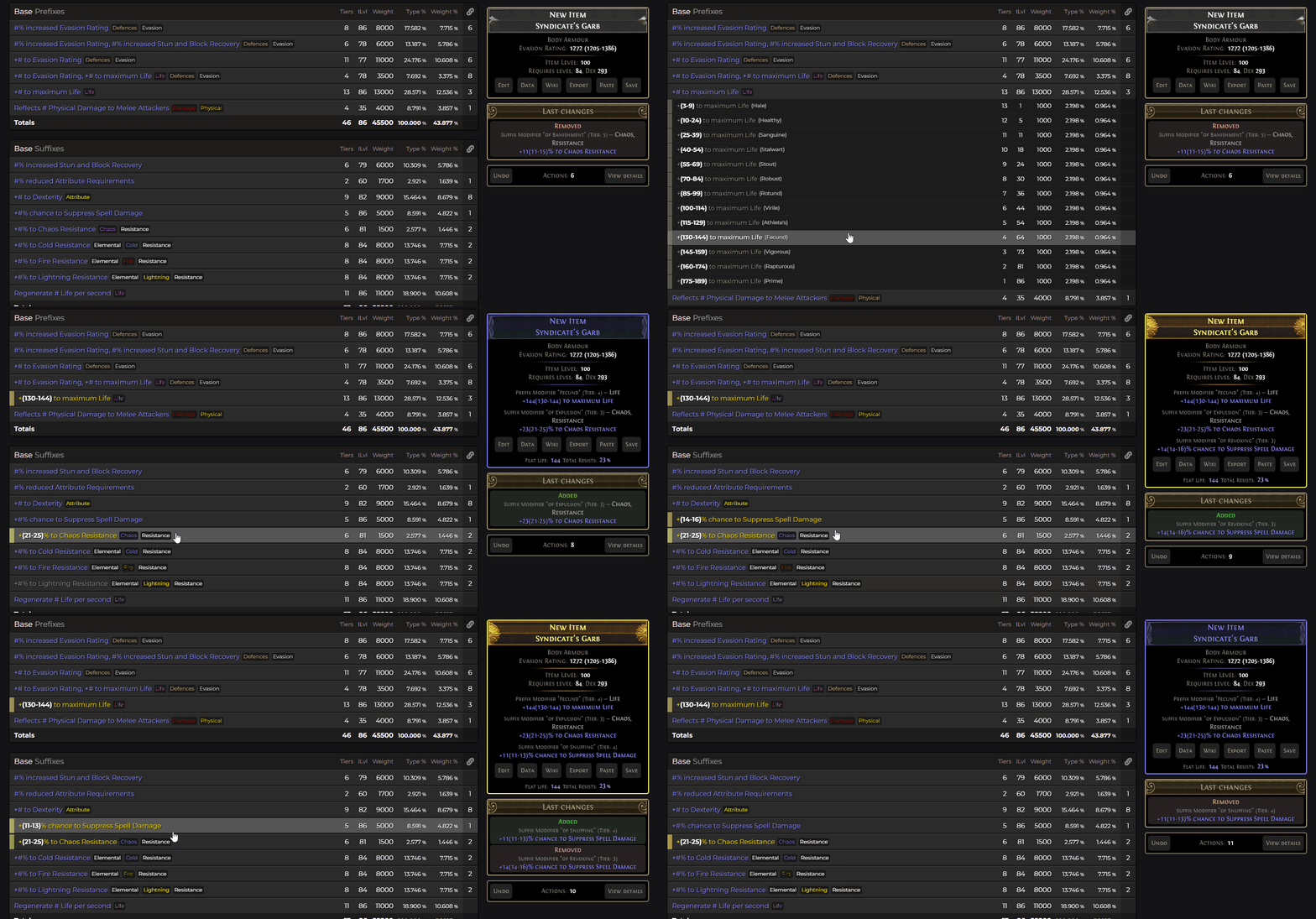
Editing a modifier
To edit a modifier item right-click on the desired modifier in the item output zone. This will in turn open a modal with all available options which include :
- Modify the modifier's values.
- Fracture or unfracture the modifier.
- View the modifier's details which opens a modal with its raw data.
- Remove the modifier.
- Desecrate or undesecrate the modifier.
- Set a modifier to crafted or uncrafted.
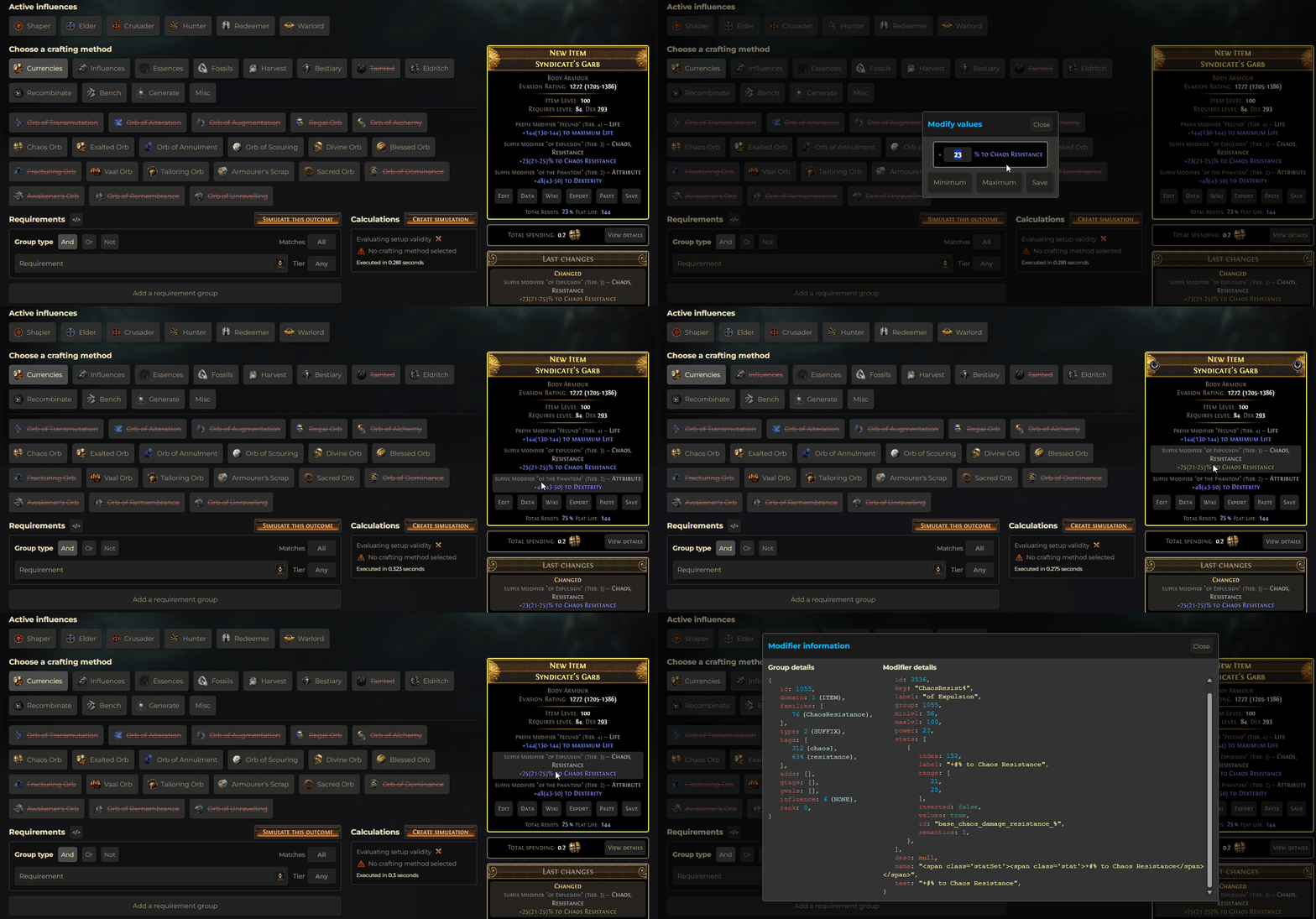
Managing user settings
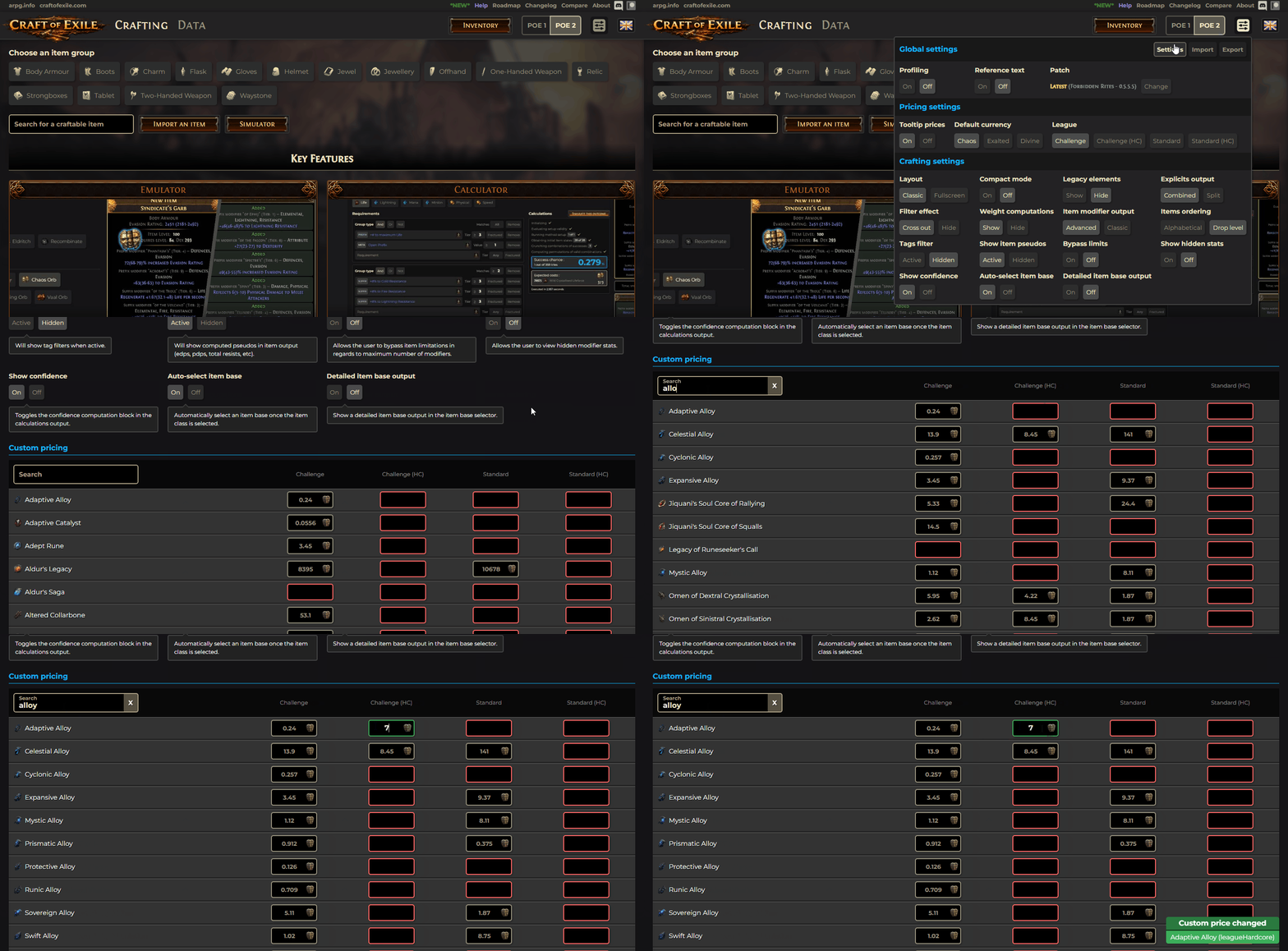
You can quickly edit your user settings by hovering over the dials icon at the top right of the site's header. A zone will appear with all available user settings for the current page.
For the full user setting listing and explanations along with the access to the custom pricing editor interface, click on the Settings button at the top right of the zone.
These settings are stored in the browser's local storage and thus are only available on your PC or device and in the browser in which you've set them.
You can export your entire user settings to import them on another PC or device by using the Export and Import buttons in the settings zone or using the Export Settings and Import Settings buttons in the detailed settings page.